PDF to Text: Extract Plain Text from Any PDF
PDF to Text pulls the words out of your PDF and saves them as a simple .txt file. Everything runs in your browser, so the document stays on your own computer or phone.
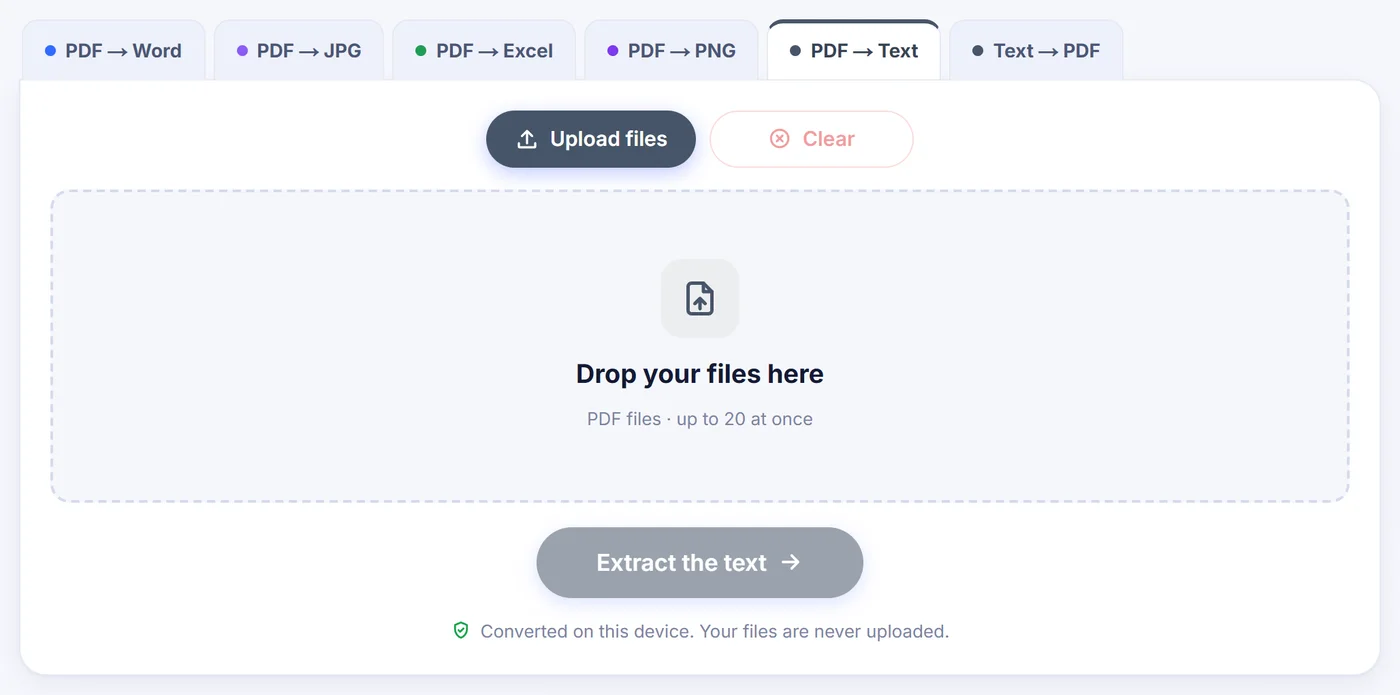
Converted on this device. Your files are never uploaded.
How it works
Drop in one or more PDFs
Add up to 20 files; a locked PDF asks for its password right away, and that password is only used locally.
Pick a text style
Plain paragraphs, line by line or keep layout, plus the OCR mode, the language of any scanned pages and, for a single PDF, a page range.
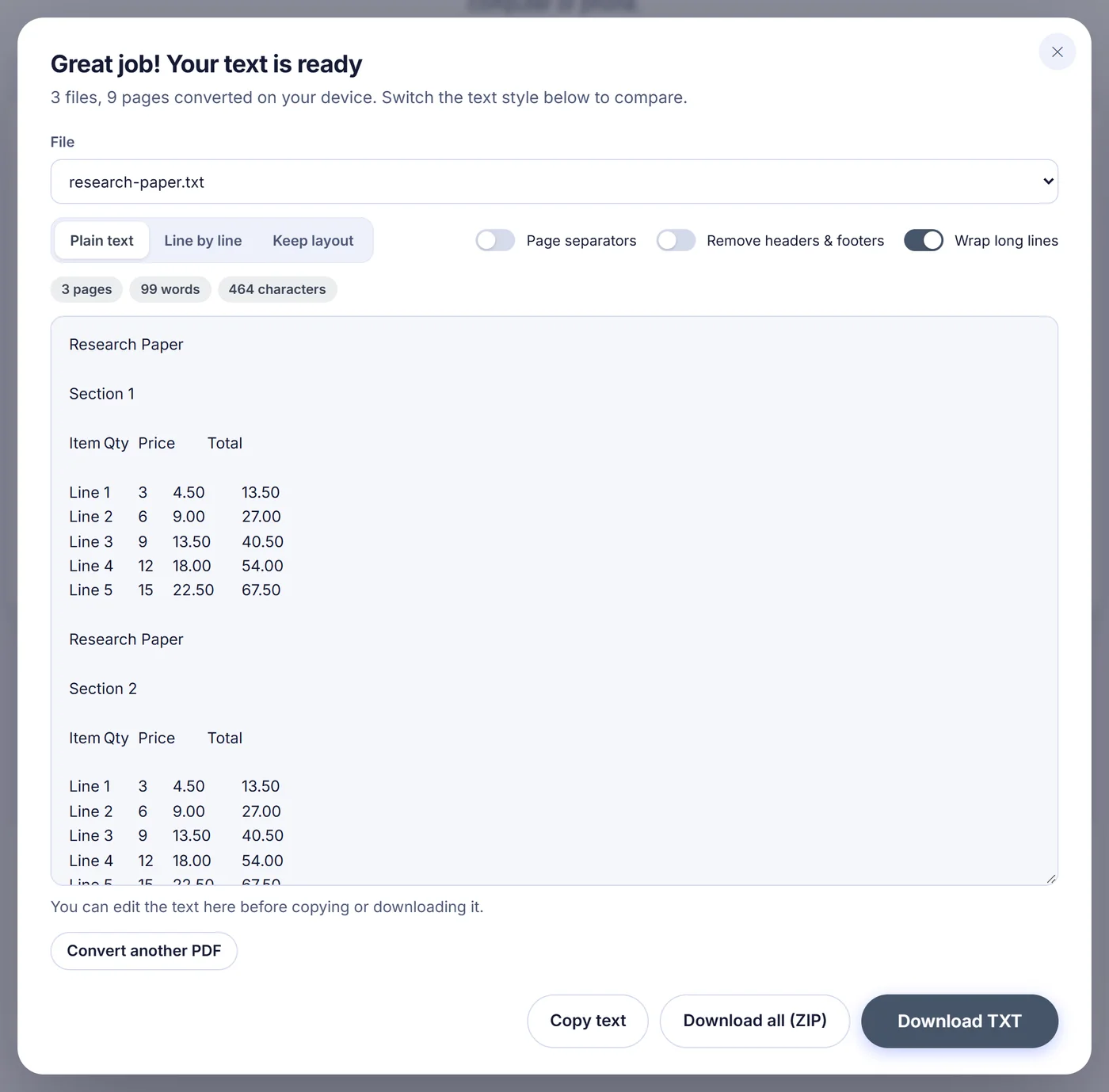
Check, copy or save
Read the result in the preview, fix anything by hand, then copy it or save a .txt; with several files you can also get them all in one ZIP.
Why turn a PDF into plain text?
A PDF is built to look the same everywhere, not to be reused. Try copying a long report out of a viewer and you usually get broken lines, words cut in half by hyphens, page numbers sitting in the middle of sentences and two columns mixed into nonsense. A plain .txt file is the opposite: no fonts, no layout, just characters that any editor, script, search index or chatbot can read.
People reach for a PDF to Text converter when they want to quote a passage, feed a contract into a translation tool, paste a research paper into a note app, count the words of a manuscript, grep through a stack of invoices or give a language model the content of a document without the noise. The text is small, opens instantly and works with software that will never understand PDF.
How this PDF to Text tool reads your file
The converter does not simply dump characters in the order they happen to be stored inside the PDF, which is often random. It looks at where every piece of text sits on the page and rebuilds the lines from their real positions. Then it looks for the empty vertical strip between columns. When a page is set in two or three columns, like a journal article or a newsletter, the left column is read to the end before the right one, while full-width titles stay where they belong. (The Keep layout style is the exception: it reproduces the page as it looks, so columns stay side by side.)
Some PDFs draw bold text by printing the same word twice, slightly shifted. Those duplicates are dropped, so you do not get "TitleTitle". Pages whose text runs sideways, such as a landscape table rotated onto a portrait page, are turned so the dominant reading direction comes out horizontal.
Three text styles from one pass
- Plain text (recommended): lines are joined into real paragraphs that reflow in any editor. A word broken across two lines, such as "exam-" and "ple", becomes "example" again. Unless page separators are on, a sentence that continues onto the next page is stitched back together too.
- Line by line: every line break from the PDF is kept. Handy for poems, code listings, addresses or anything where the line matters.
- Keep layout: text padded with spaces so that, in a fixed-width font, table columns and form fields stay lined up.
All three are generated from the same reading of the file, so switching between them in the preview is instant and the PDF is not processed again. Switching does replace any edits you typed into the preview, so pick the style first. Rows that look like a table keep their cells apart with tab characters in the first two styles, which makes pasting into a spreadsheet easy.
Scanned PDFs and OCR
A scan is a picture of a page, so there is no text to pull out. When you open a single PDF, the options window counts which pages have selectable text and warns you if some look scanned. The OCR setting has three choices. Auto reads only the pages that have almost no text but do contain an image. Off keeps strictly the existing text layer. Every page ignores the text layer and reads all pages as images, which is the fix when copied text comes out as gibberish because of a broken font encoding.
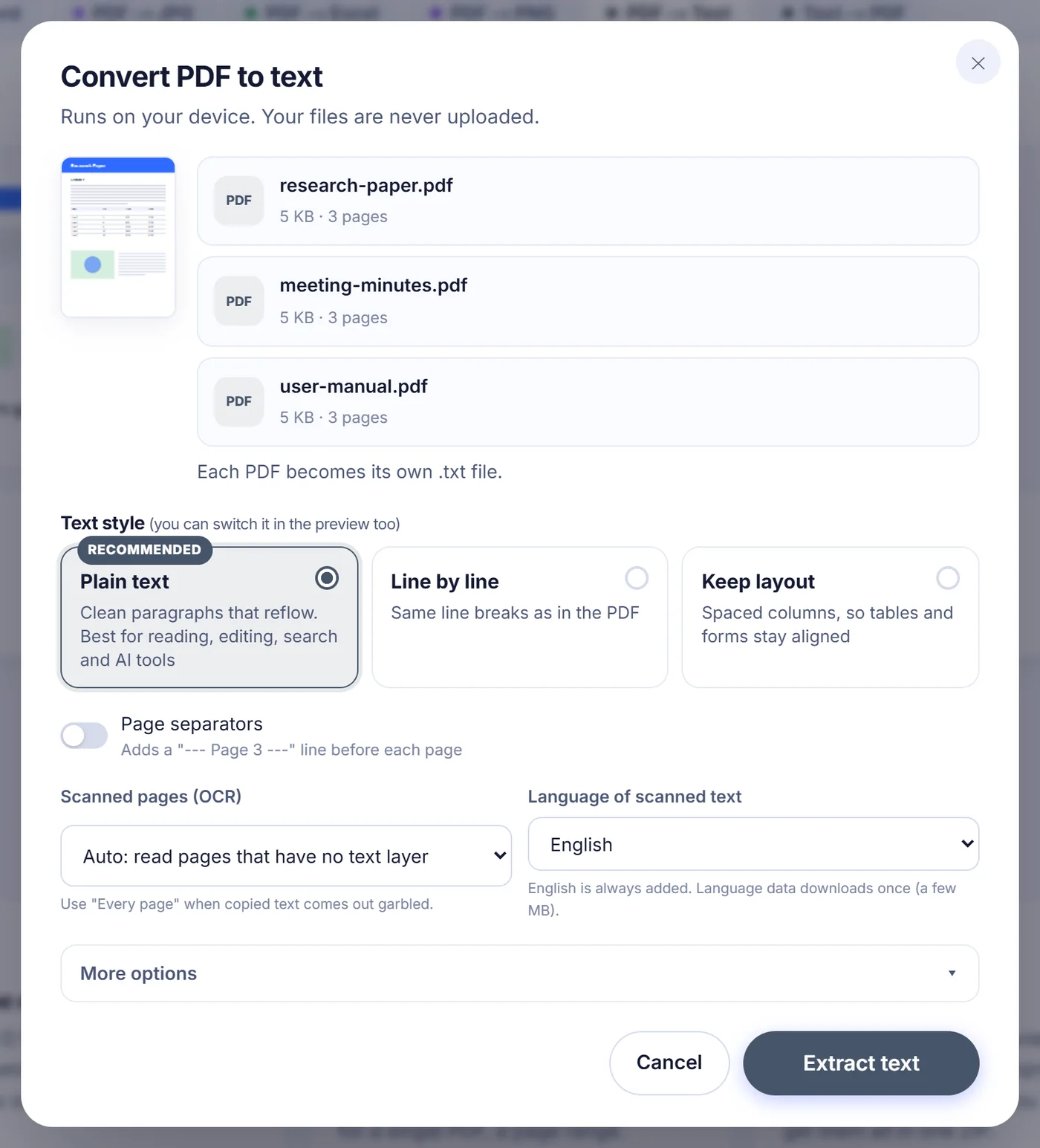
OCR runs on your device with Tesseract. Pick the language of the document from more than thirty options, including Romanian, German, French, Spanish, Russian, Greek, Arabic, Hebrew, Hindi, Chinese, Japanese and Korean; English is always added as a backup. The language data is downloaded once (a few megabytes) and an internet connection is needed only for that first time. After the job, the summary shows how many pages were read with OCR and the average recognition confidence, a quick way to judge whether a faint scan needs checking.
Options worth knowing
- Pages: with one file you can type a range such as 1-3, 8, 10- to extract only those pages. "10-" means page 10 to the end.
- Page separators: inserts a "--- Page 3 ---" line before each page, useful when you need to cite page numbers later.
- Remove repeating headers, footers and page numbers: lines that come back at the top or bottom of most pages (the report title, "Page 4 of 20", a confidentiality notice) are taken out. It needs at least three pages to compare.
- Hyphen joining: on by default for plain text; switch it off if your document has real hyphenated words at line ends that must stay split.
- Line endings and BOM: choose LF or CRLF, and add a UTF-8 byte order mark if an old Windows program shows accented letters as strange symbols.
Your choices are remembered in this browser for the next visit.
Several PDFs at once
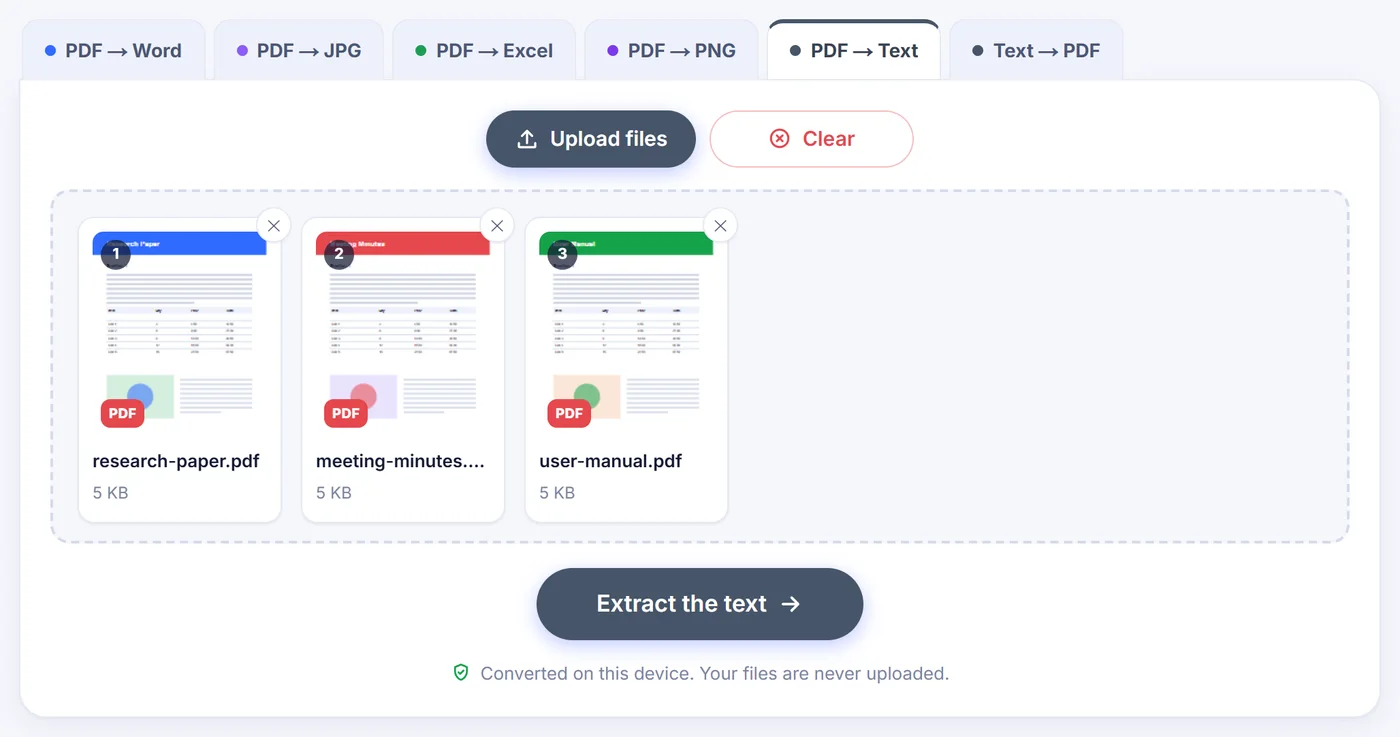
Add as many as 20 files in one go. Each PDF becomes its own .txt file named after the original, so minutes.pdf turns into minutes.txt; two files with the same name get a number added. In the result window a file selector lets you look at each text separately, and Download all (ZIP) packs every .txt into one archive. The page range field is only offered when a single PDF is being converted; with a batch, every page of every file is read.
Checking and editing the result
The text appears in a large box with live counts of pages, words and characters. You can correct a misread name, delete a disclaimer or tidy a heading right there, then copy everything to the clipboard or download it. Very long documents show the first two million characters in a read-only preview, but copy and download always include the full text.
Common problems and quick fixes
- "No text found": the pages are probably scans with OCR switched off, or the text is drawn as vector shapes. The message offers a button that runs the file again with OCR.
- Password-protected PDF: type the password when asked, or skip that file and continue with the others.
- Damaged file: unreadable pages are skipped and counted in the note under the text instead of stopping the whole document.
- Phone runs out of memory: convert a smaller page range. OCR renders pages at about 250 DPI but caps the image size so mobile browsers cope better.
- Handwriting: OCR is made for printed text; handwritten notes rarely come out usable.
Your PDF never leaves the page
The reading, column detection and OCR all happen in JavaScript and WebAssembly inside your browser tab. The PDF is not sent anywhere, so there is no copy waiting on a server to be deleted. When you close the tab, the file and the extracted text are gone. It is free, needs no account or email, and adds nothing to your text.
Frequently asked questions
How do I convert a PDF to a TXT file for free?
Drop the PDF on this page, choose a text style and press the button. You can copy the result or download it as a .txt file, with no account and no watermark.
Can I extract text from a scanned PDF?
Yes. With OCR on Auto, pages that are only images are read by Tesseract on your device. Choose the language of the scan for better accuracy; English is always included.
Why is the copied text from my PDF garbled?
The PDF probably uses a font without a proper character map. Set OCR to "Every page" so the pages are read as images instead of trusting the broken text layer.
Does it keep tables and columns?
In the plain text and line by line styles, multi-column pages are read column by column and table cells are separated by tabs. For tables you want to see aligned, pick "Keep layout", which lines columns up with spaces.
Can I convert only some pages of a PDF to text?
Yes, when you convert one file: type a range like 2-5, 9 in the Pages field. With several files, all pages are extracted.
Is it safe to convert confidential PDFs here?
The file is processed inside your browser and never sent to a server. Passwords for locked PDFs are used only on your device and are not stored.